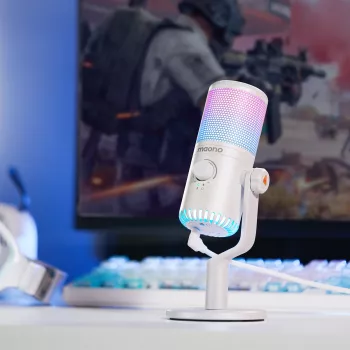
Clear voice chat and streaming audio depend on quick, practical controls: a gain knob to set levels, a one-touch mute for interruptions, and reliable USB connectivity. This RGB USB gaming microphone pairs those essentials with customizable lighting and broad compatibility for PC setups and supported phones, making it a strong fit for gaming comms, voiceovers, calls, and casual content creation. For more guidance, see Razer Seiren V3 Chroma.
A dedicated USB gaming mic can instantly upgrade clarity compared to many built-in laptop mics and some headset mics—especially when you want a stable desk setup that’s always ready. With a simple USB connection, you can get up and running on desktops and laptops without adding an audio interface or complicated cabling. For further reading, see MAONO Wireless/USB Microphone for PC, Condenser ….
For many players, the biggest everyday win is speed: you can adjust loudness mid-match, mute for a quick interruption, and keep your mic consistent across different apps.
Start with the gain low, speak at your normal volume, and slowly raise it until your voice is consistently strong. If loud words start to sound crunchy, harsh, or “blown out,” back the gain down slightly and rely on the app’s input level for minor tweaks.
A physical mute is one of the most useful desk-mic features for gaming and calls. Use it for coughs, snacks, off-mic conversations, or whenever background noise suddenly spikes—without hunting for a software toggle.
Lighting can be purely aesthetic, but it can also serve as a quick visual cue that the mic is active on-camera. Choose a steady color for a clean look, or cycle effects to match the rest of your setup—especially if your keyboard, mouse, or PC case already runs RGB.
Practical setup tip: set mic gain first, then fine-tune the input level inside the app (Discord/Zoom/streaming software). This helps avoid clipping while keeping your voice comfortably audible.
Plug the microphone in via USB, then select it as the input device in your system sound settings and inside the app you’re using. If your voice sounds wrong, double-check the app didn’t switch back to a webcam mic or “default input” after a restart.
Many phones can work with USB microphones, but often require an OTG adapter (USB-C OTG for many Android/USB-C devices, or a Lightning-to-USB solution on supported iPhones). For the smoothest experience, test a short recording in the exact app you plan to use before you rely on mobile recording for a session.
For app-specific troubleshooting, the official help pages for Discord Voice & Video and Windows microphone troubleshooting can save time when settings get reset or inputs conflict.
If you stream, set a quick test scene in your software and watch the meter while you talk at both normal and “hype” volume. OBS setup guidance is available in the OBS Studio documentation.
| Feature | Why it matters | What to check before use |
|---|---|---|
| Mic gain control | Helps match voice loudness to the room and speaking style | Set gain so normal speech is clear; avoid distortion on loud words |
| Mute button | Stops audio instantly for privacy and interruptions | Confirm mute state is obvious (indicator/light) and test in your app |
| RGB lighting | Adds desk style and on-camera ambience | Verify modes/brightness and whether lighting can be turned off |
| PC/phone connectivity | Ensures the mic works across devices | Check required OTG/adapter and app input selection |
The gain knob changes how strongly the microphone captures sound at the source, while an app input level is a digital adjustment after the signal is captured. Set gain first for a clean, strong signal, then fine-tune the app level to prevent clipping.
Many phones can use a USB microphone with the correct OTG adapter (USB-C OTG or a compatible Lightning-to-USB solution), but support varies by device and app. Test with a short recording and confirm OTG support if the phone doesn’t recognize the mic.
Distortion usually comes from gain being too high (clipping), while “too quiet” is often caused by being too far from the mic or selecting the wrong input device. Fix it in this order: select the correct mic, move closer, lower gain if it’s clipping, then adjust the app input level and keep noise suppression moderate.


Leave a comment